

Need a shorter path first? Complete the quickstart, then return here for the full integration pattern.
Prefer email delivery instead of an iframe? See Non-embedded signing.
Walkthroughs use cURL. The same calls are in the official SDKs.
Prerequisites
Before you begin:- Create an organization and API key in Settings.
- Upload a template, place at least one required signature field, and assign it a signer role — see the Embedded templates walkthrough.
- Call the Formable API from your backend only. Never expose your API key in the browser.
Overview
1
Create an embedded signature request
Start a request from a template with one or more signers (each with a role).
2
Generate a signing URL
Mint a short-lived URL for a signer’s
recipientSignatureId just before they are ready.3
Embed the URL in an iframe
Load the signing experience inside your product.
4
Detect completion and download
Listen for webhooks or poll status, then fetch the signed PDF.
Server side
Create the signature request and signing URL on your backend, then pass only the URL to the client.1. Create an embedded signature request
Start from a template you’ve already prepared. An embedded signature request needs:templateId— which document to sendsigners— who will sign (email,name, androlefor every role used by required fields)
sender is optional. When omitted, Formable uses the API key organization owner.
Response
signatureRequestId for status and download. Save each signer’s recipientSignatureId to mint their signing URL.
Prefill fields
Templates can include fields beyond the signature — company name, dates, checkboxes, and so on. Pass afields array to set values before the signer opens the document. Each entry sets a value on a fieldId from the template.
Field IDs come from the template. Open the template’s editor URL to place fields and copy their IDs. A
fieldId that doesn’t exist on the template returns a 400.Test mode
SettestMode: true while integrating so the request doesn’t count toward billing. Test mode documents are watermarked and are not legally binding.
2. Generate a signing URL
A signing URL opens the signing experience for one recipient. Create it with that signer’srecipientSignatureId. It expires one hour after creation, so generate it right before you show it to the signer.
Response
Client side
Embed thesigningUrl in an iframe so the signer can complete the document without leaving your product.
Signing experience
Once the iframe loads, the signer walks through required fields on the document. Click Start to begin. Required fields are highlighted so the signer knows where to act.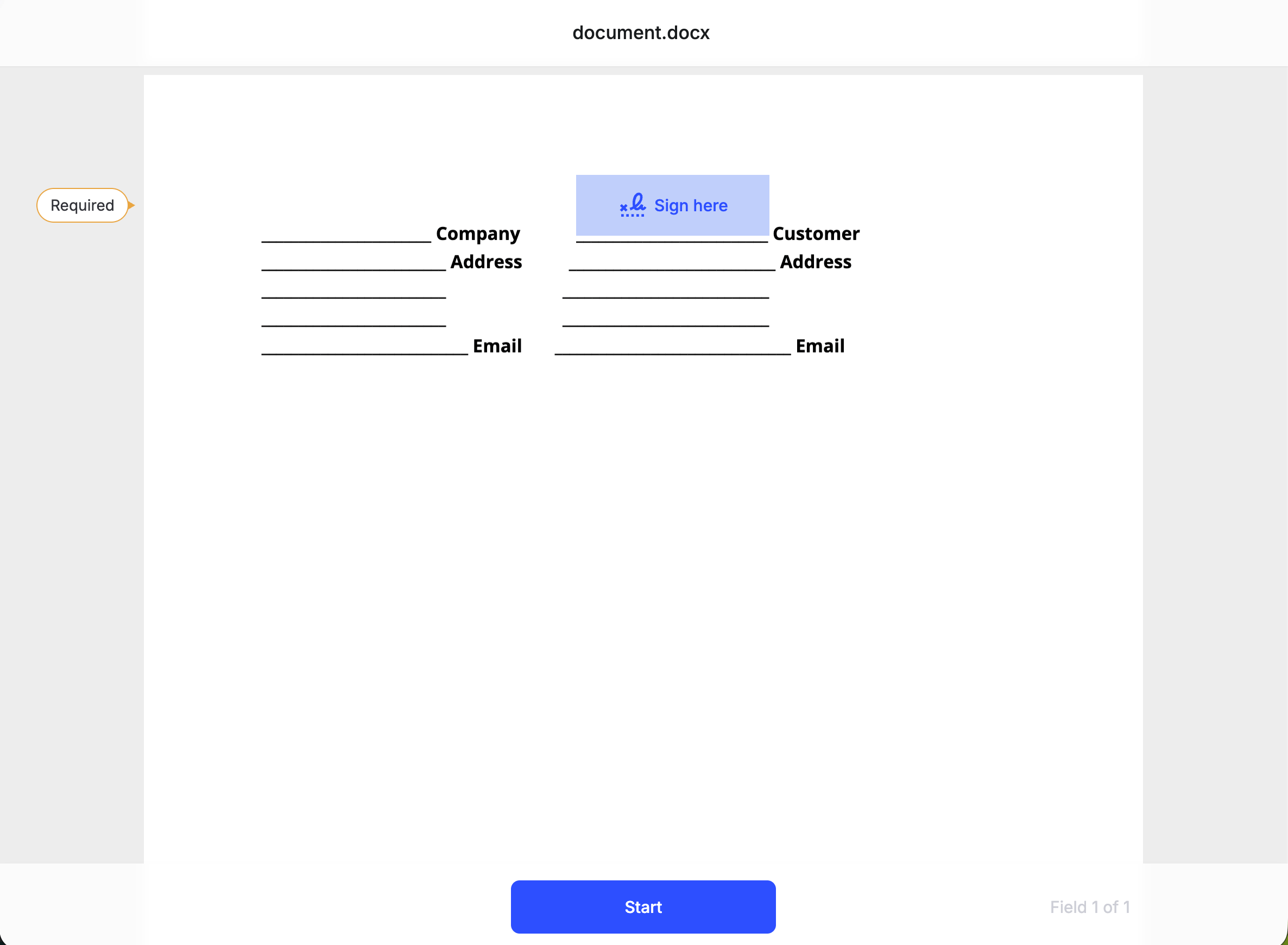
The signing experience with a required Signature field highlighted. Click Start to begin.
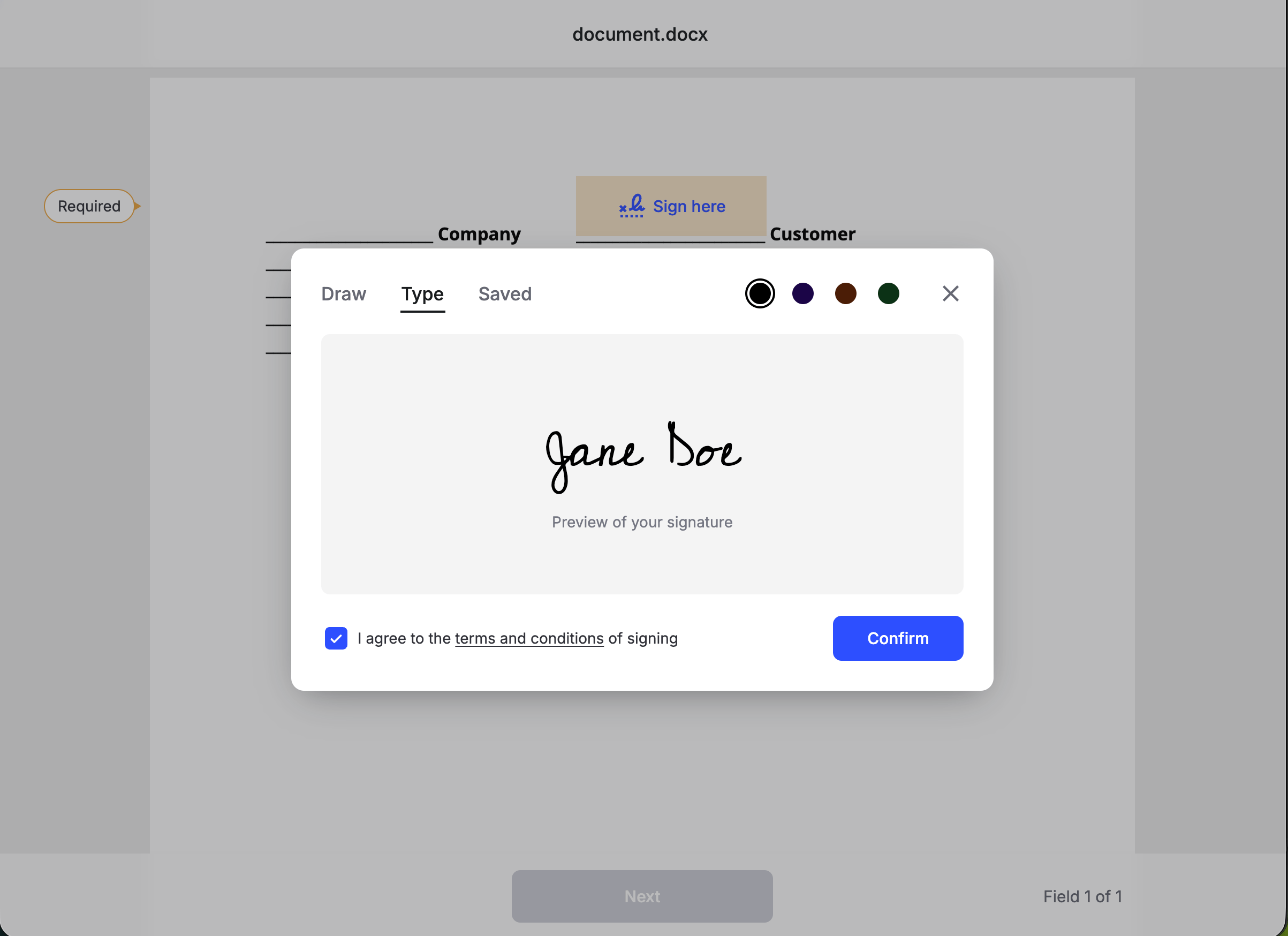
The signature modal with Draw selected. Signers can also type a signature or reuse a saved one.
onSigningComplete to the parent window.
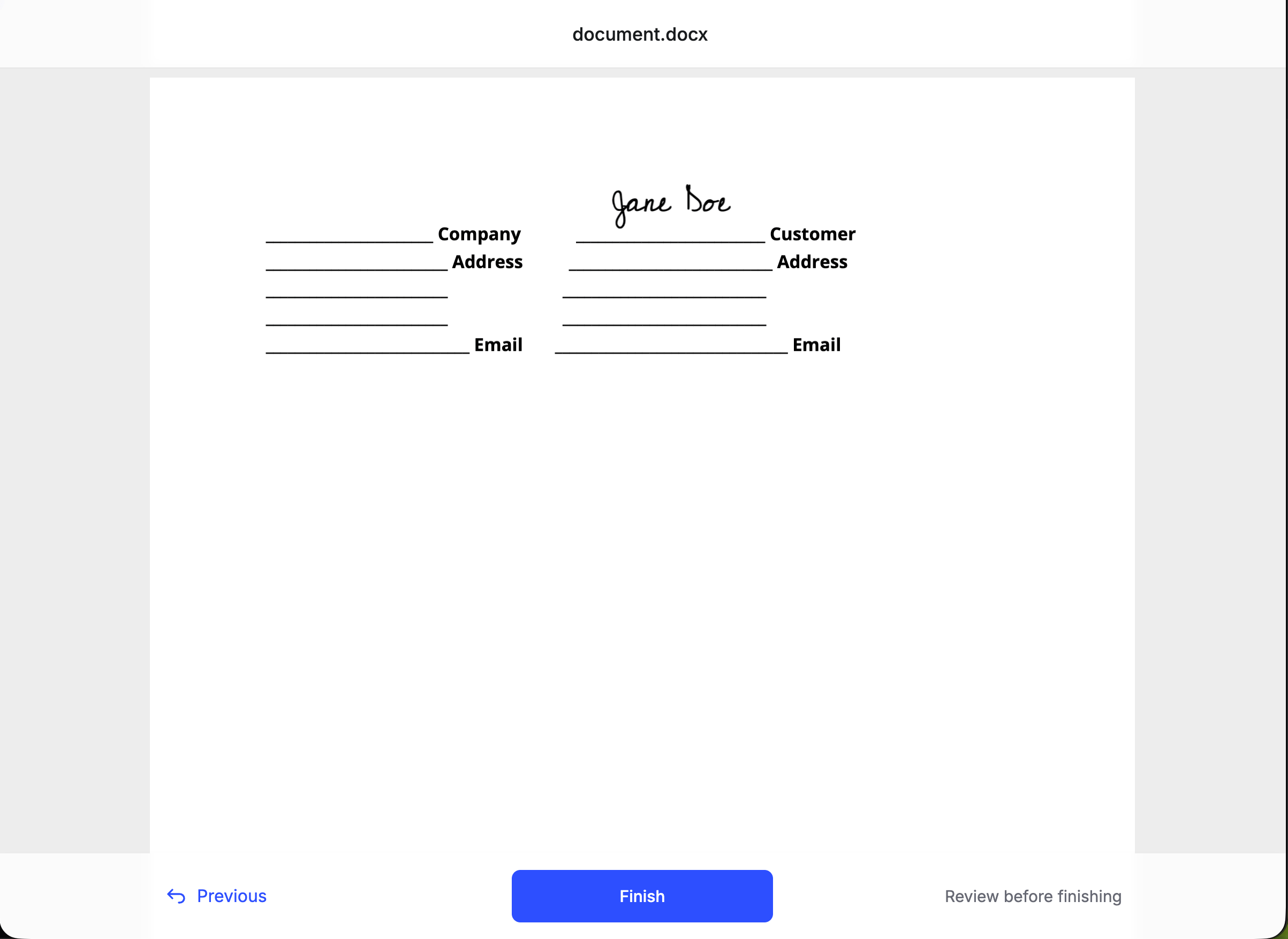
Review step after the signature is placed. Click Finish to complete the request.
Detect completion
When the signer finishes, the signature requeststatus becomes Completed. You have four ways to learn that:
Listen for iframe postMessages
Listen for iframe postMessages
When signing finishes inside the embedded iframe, Formable posts a message to the parent window. Use this to close the iframe or update your UI immediately:
Always check
event.origin. Treat these as client UX signals — confirm completion with a webhook or API poll before downloading the signed PDF.Listen for the document_completed webhook
Listen for the document_completed webhook
Configure a webhook endpoint and handle the
document_completed event. Formable pushes this once the signed PDF is ready, so you can download without polling. Do not use document_signed alone — that fires when a signer finishes, before the completed file is available.Poll the signature request status
Poll the signature request status
Fetch the signature request and check
status. It moves from Created to Completed. The response also includes signers (with recipientSignatureId) and envelope fields.Read the event stream
Read the event stream
Fetch signature request events for a chronological history of what happened.
Download the signed PDF
Once status isCompleted, fetch a temporary download URL for the signed PDF (the signed envelope).
Response
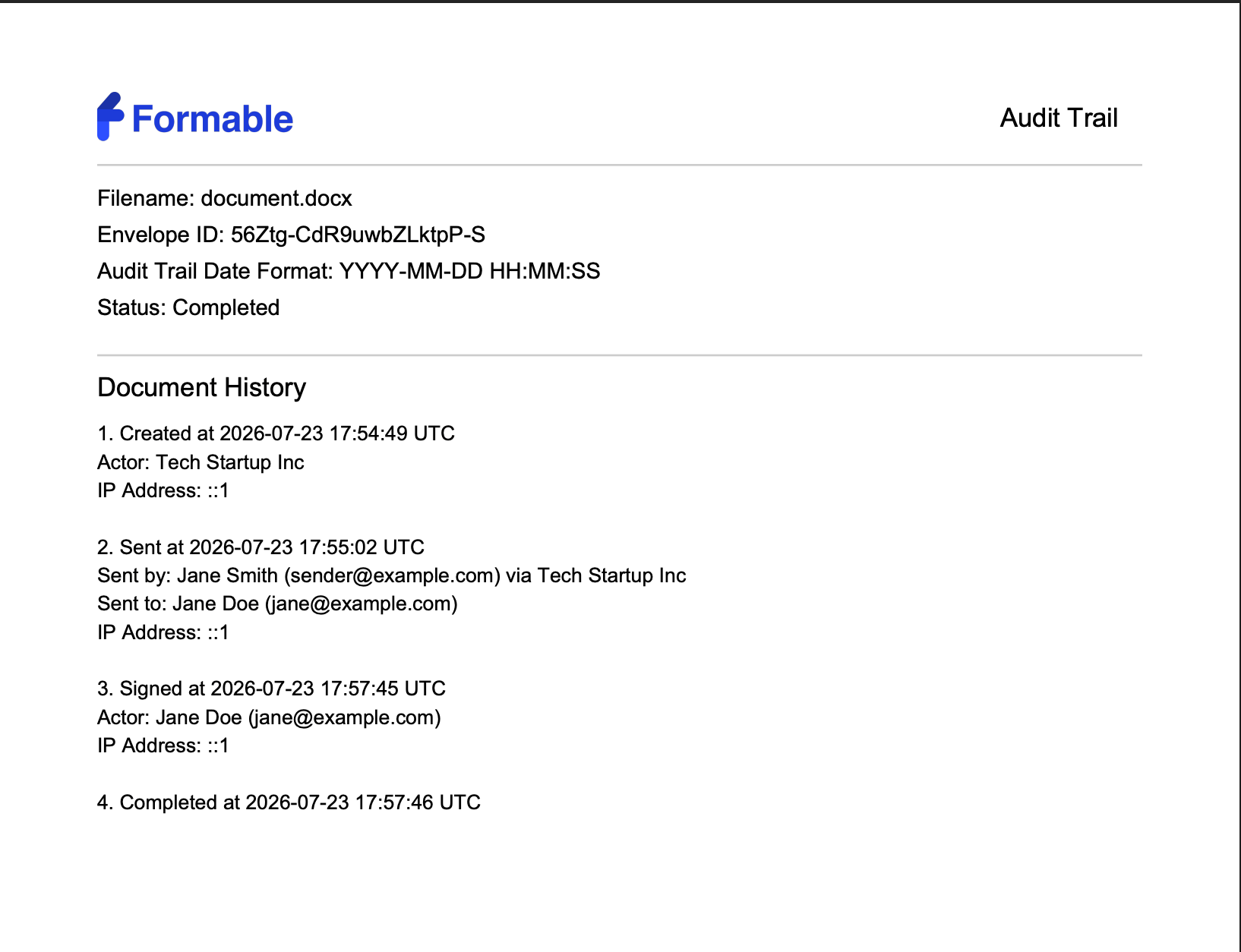
Audit trail appended to the signed PDF, showing Created, Sent, Signed, and Completed events.
Requesting the signed envelope before signing is complete returns
409 with "Envelope has not been signed yet".Next steps
Embedded templates
Upload documents and place signature and form fields.
Webhooks
Get notified when a document is viewed or signed.
Redlining
Negotiate a DOCX contract before signing.
API reference
Full endpoint docs for signature requests.