> ## Documentation Index
> Fetch the complete documentation index at: https://docs.formabledocs.com/llms.txt
> Use this file to discover all available pages before exploring further.
# Set up a developer account
> Create a Formable account, organization, API keys, and webhooks so you can call the API: all in less than 5 minutes.
To use the Formable API, create an account, add an organization, then generate an API key. Optionally register a webhook to receive signing and redlining events.
## Create an account
1. Go to [app.formabledocs.com/signup](https://app.formabledocs.com/signup) and create an account.
2. Sign in at [app.formabledocs.com](https://app.formabledocs.com).
3. Open [Settings](https://app.formabledocs.com/settings).
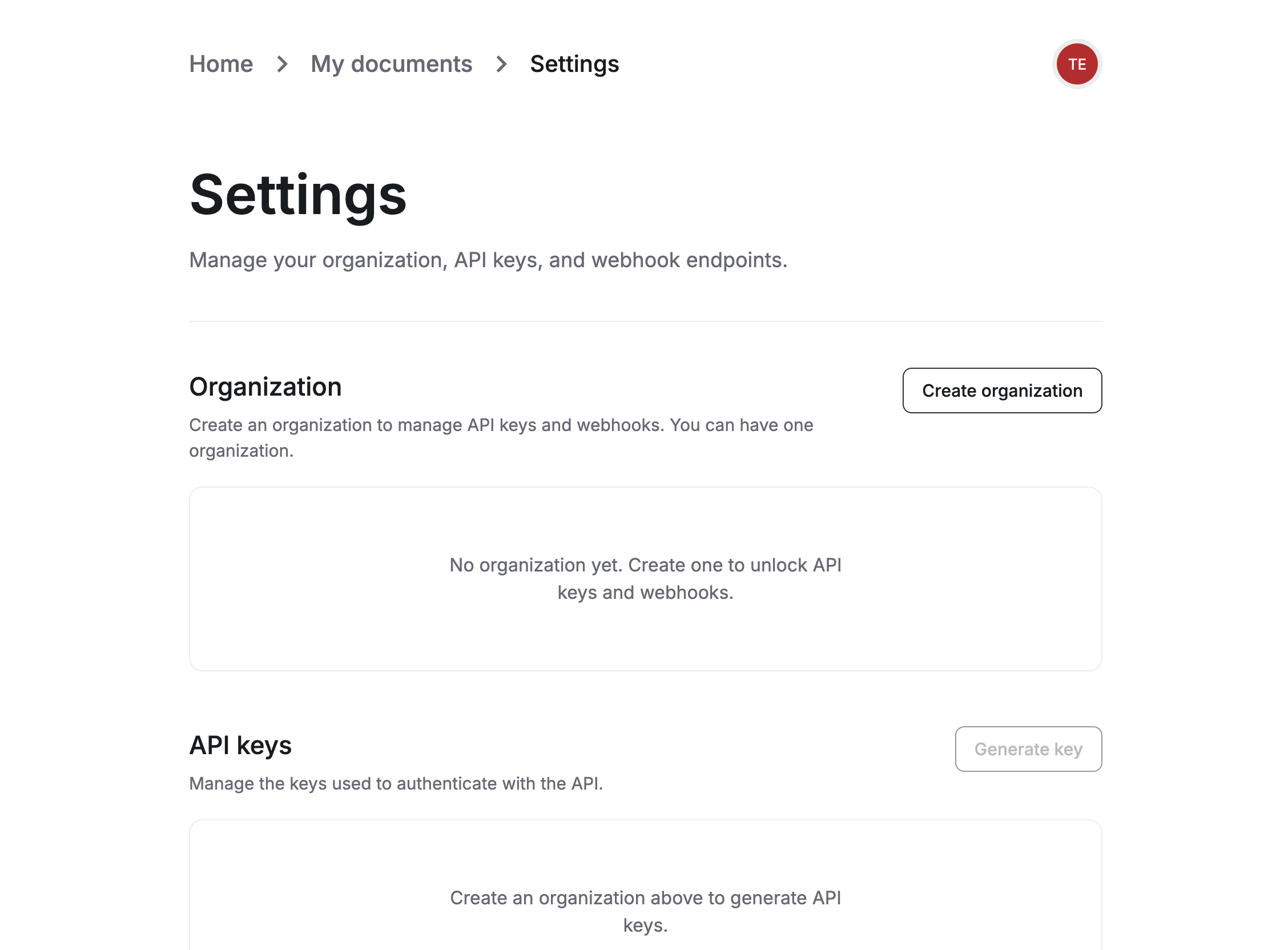
Until you create an organization, API keys and webhooks stay locked.
 ## Create an organization
API keys, webhooks, and API resources belong to an organization. Each account can have one organization.
In the **Organization** section, click **Create organization**.
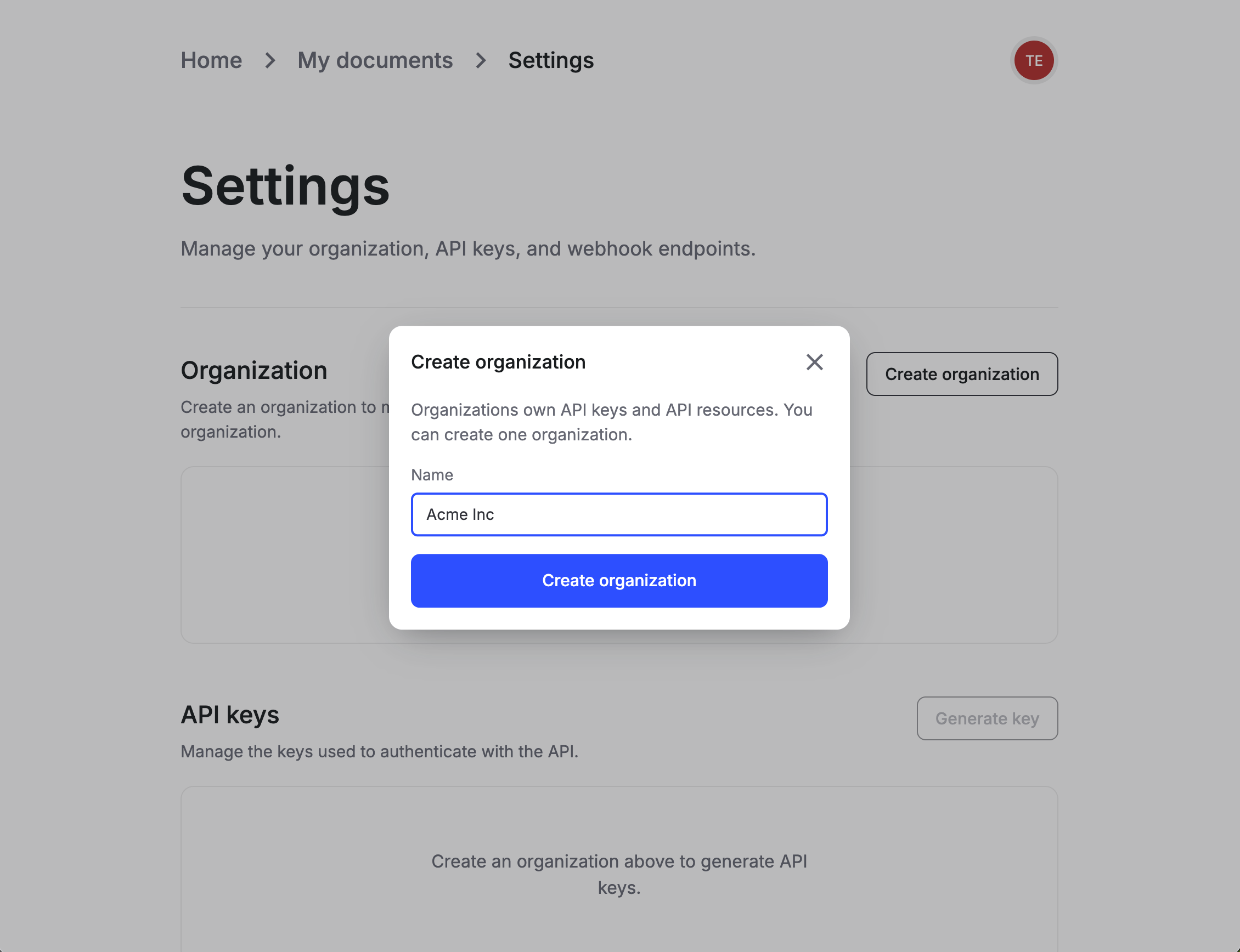
Enter a name and click **Create organization**.
## Create an organization
API keys, webhooks, and API resources belong to an organization. Each account can have one organization.
In the **Organization** section, click **Create organization**.
Enter a name and click **Create organization**.
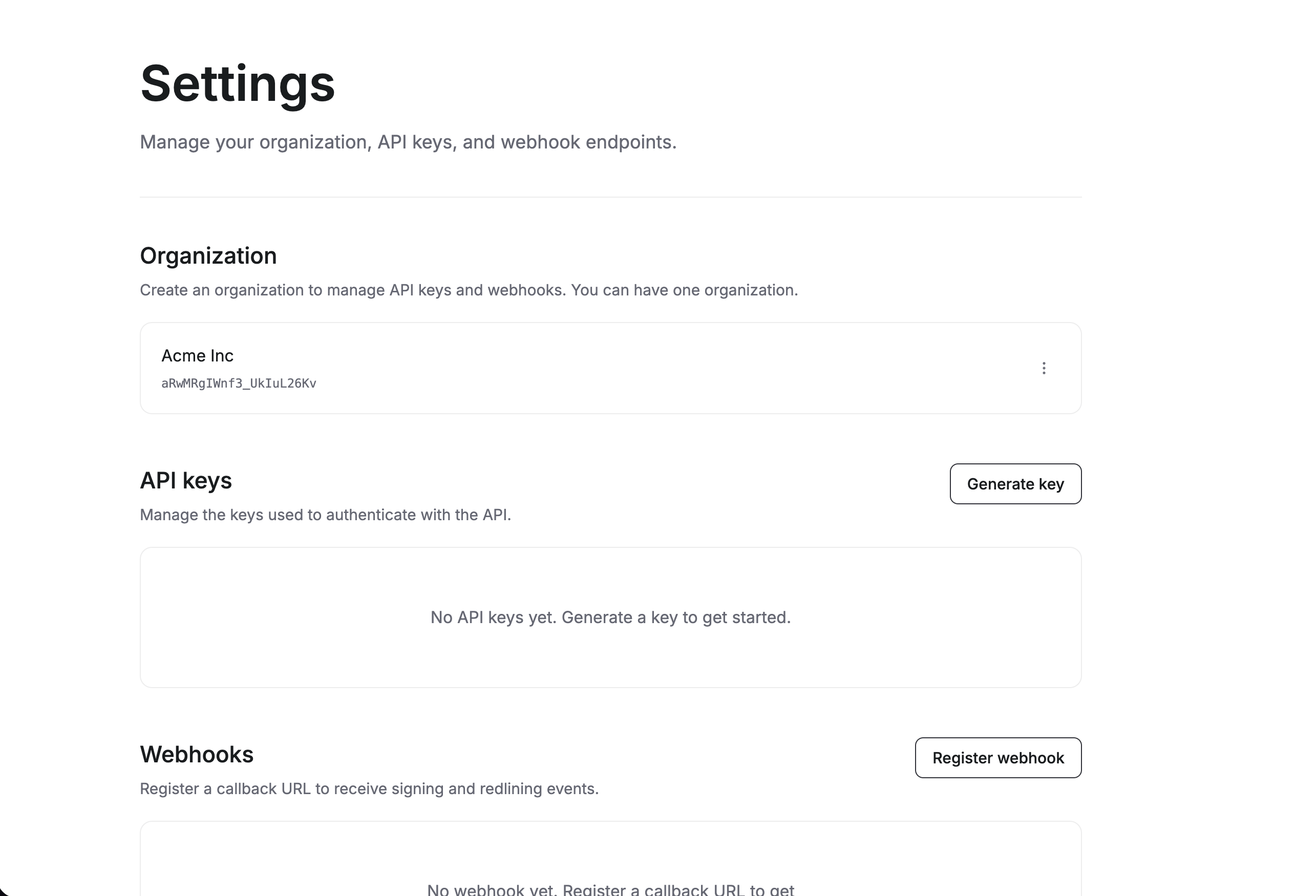
 Your organization name and ID appear in Settings. **Generate key** and **Register webhook** become available.
 ## Generate an API key
Use an API key as a Bearer token on every request. See [Authentication](/authentication) for how to send it.
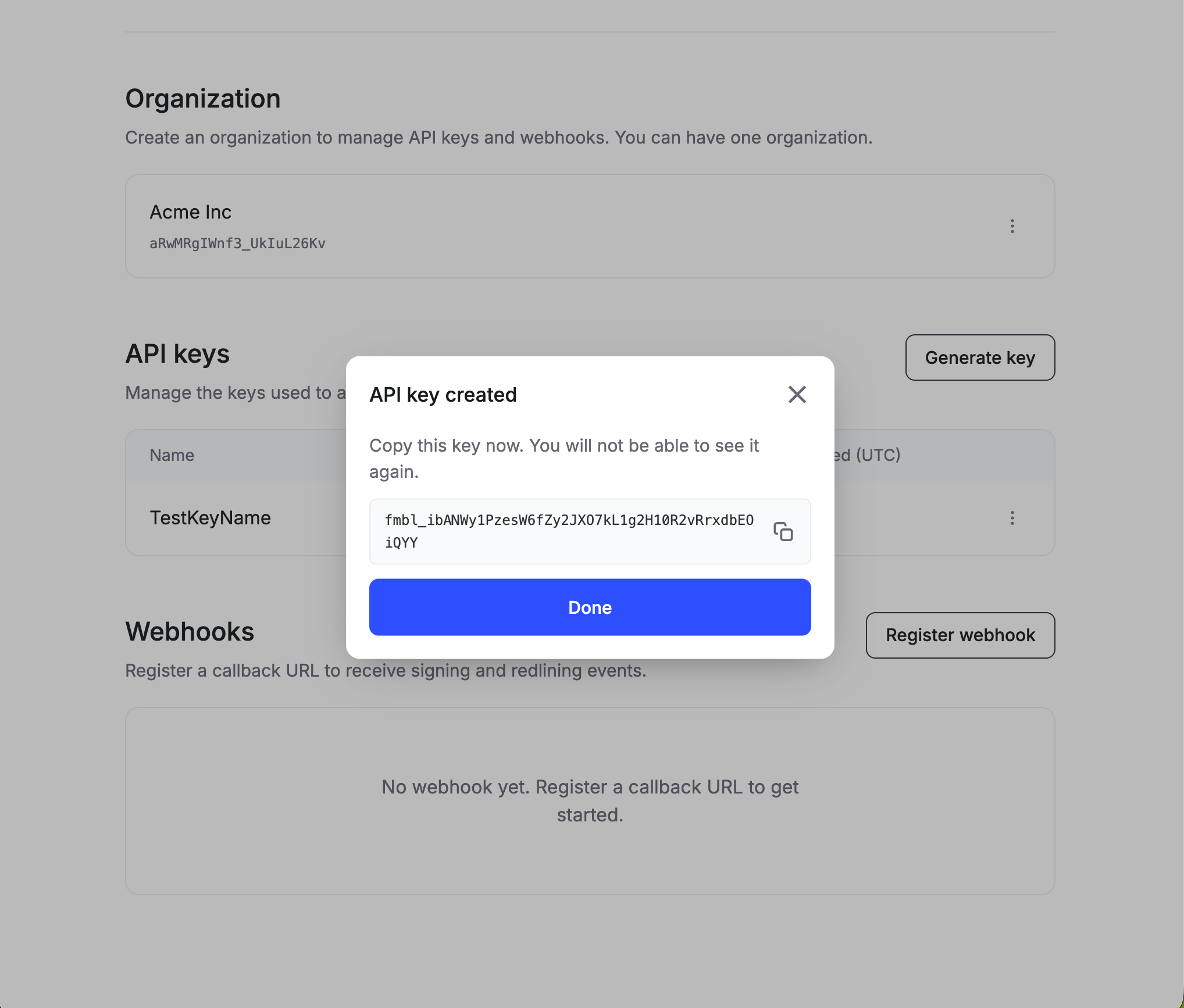
In the **API keys** section, click **Generate key**, enter a name, and confirm.
## Generate an API key
Use an API key as a Bearer token on every request. See [Authentication](/authentication) for how to send it.
In the **API keys** section, click **Generate key**, enter a name, and confirm.
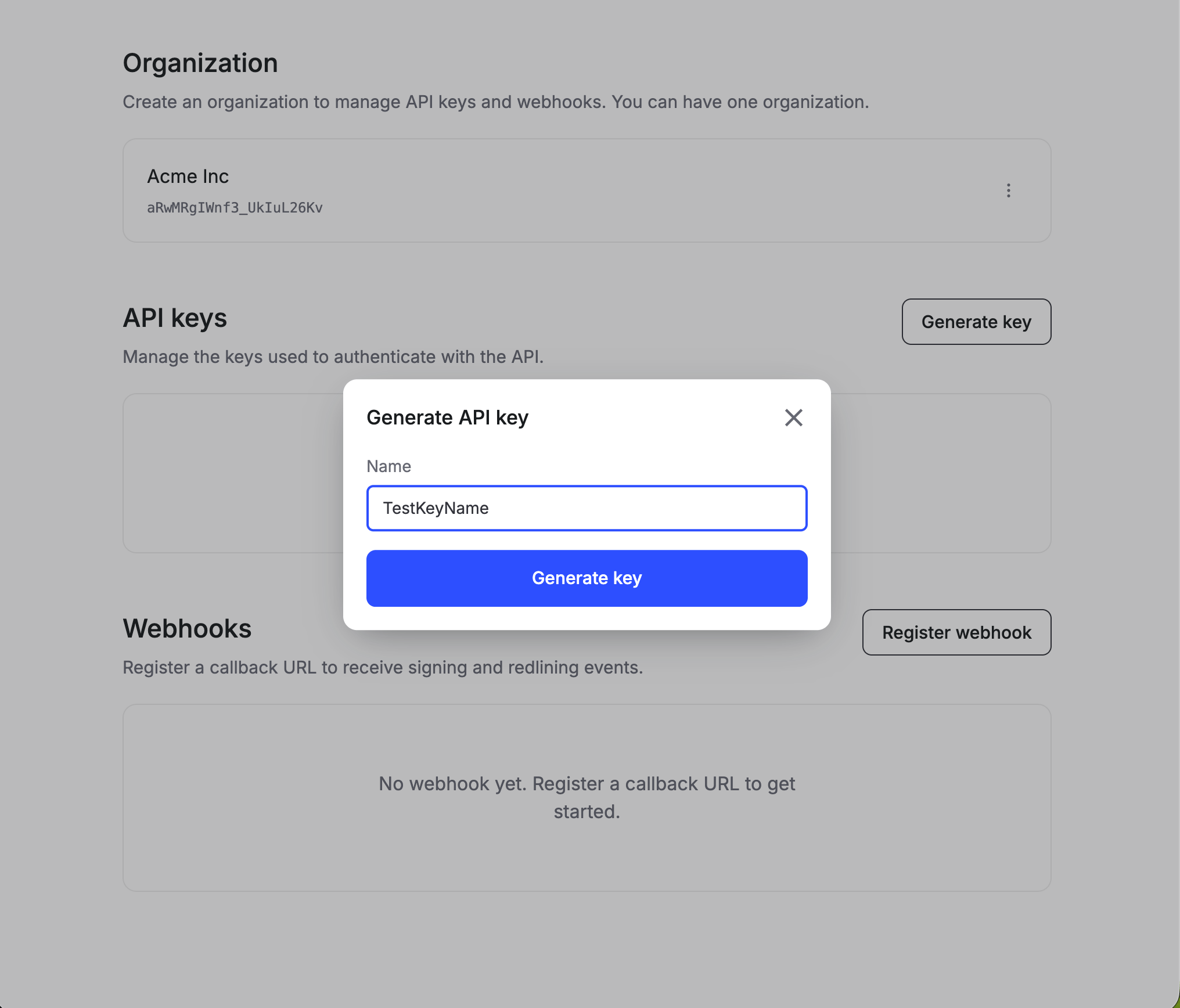 Formable shows the full key once. Copy it and store it before you click **Done**.
 Never expose API keys in browser or mobile code. Call the API from your backend.
You can rename or delete keys from the same page. Deleting a key revokes it immediately. Each account can have up to 10 active keys.
## Register a webhook
Webhooks notify your app when documents are viewed, signed, or updated in a redline workflow. Each organization has one webhook URL. See [Webhooks overview](/webhooks/overview) for delivery details.
In the **Webhooks** section, click **Register webhook**, enter an HTTPS callback URL, and confirm.
Never expose API keys in browser or mobile code. Call the API from your backend.
You can rename or delete keys from the same page. Deleting a key revokes it immediately. Each account can have up to 10 active keys.
## Register a webhook
Webhooks notify your app when documents are viewed, signed, or updated in a redline workflow. Each organization has one webhook URL. See [Webhooks overview](/webhooks/overview) for delivery details.
In the **Webhooks** section, click **Register webhook**, enter an HTTPS callback URL, and confirm.
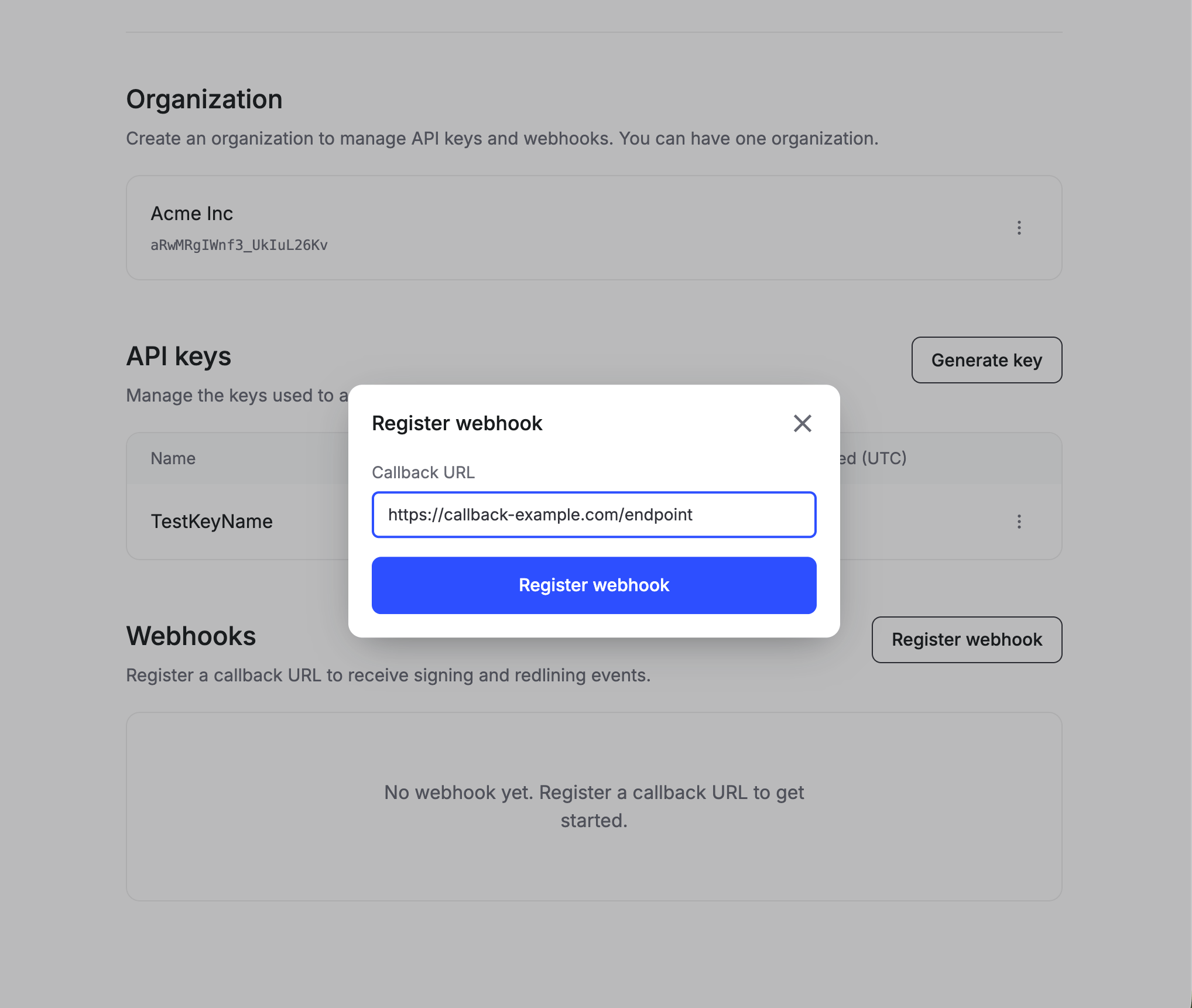 Copy the signing secret when it's shown and store it as an environment secret. You'll use it to [verify webhooks](/webhooks/verifying-webhooks). Formable does not show the secret again. You may rotate secrets if need be.
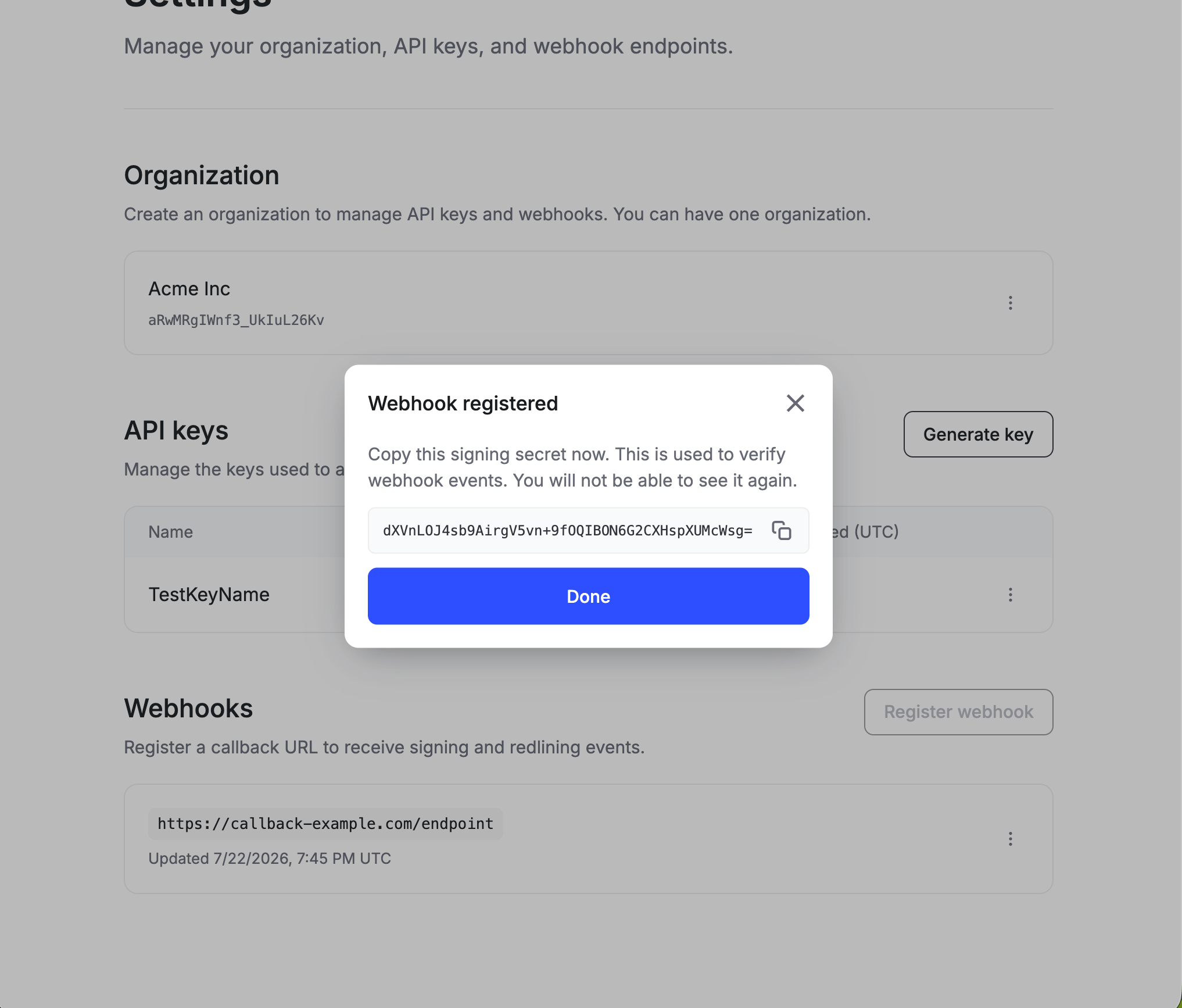 Production callback URLs must use `https://`. After registration you can edit the URL, rotate the secret, or delete the endpoint from the actions menu next to your webhook.
## Next steps
Send your API key on every request.
Create a signature request and get a signing URL.
Handle delivery, retries, and event payloads.
Learn how templates and signature requests fit together.
Production callback URLs must use `https://`. After registration you can edit the URL, rotate the secret, or delete the endpoint from the actions menu next to your webhook.
## Next steps
Send your API key on every request.
Create a signature request and get a signing URL.
Handle delivery, retries, and event payloads.
Learn how templates and signature requests fit together.